Customer portal
One branded site where your customers find their machines, your documents, and service.
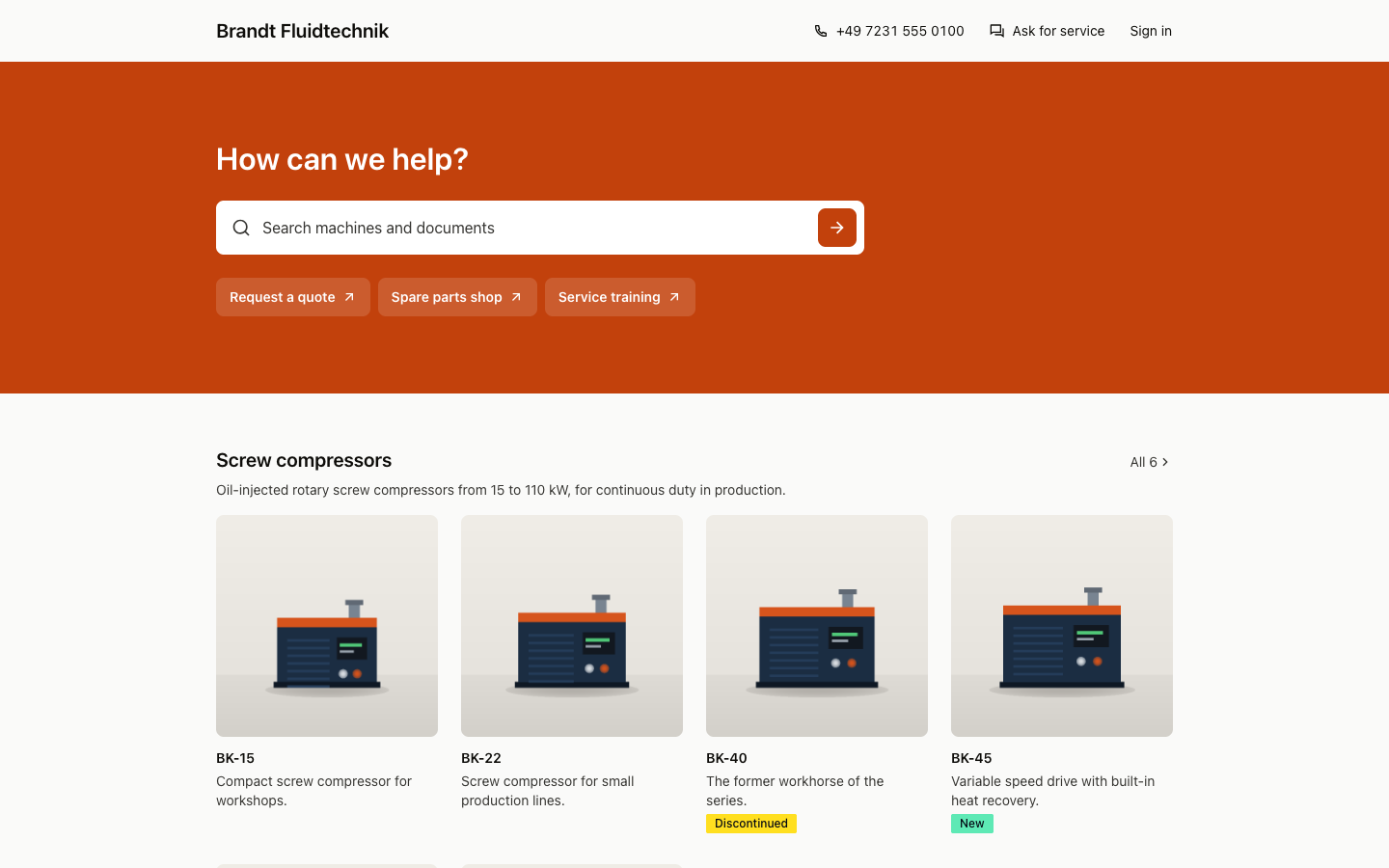
Your workspace can have a customer portal at /@<handle>. Customers browse your machine types, download the documents you share, open a machine's page from its QR code, and ask for service. Nothing is public until an owner or admin shares it.
How it works
- Owners and admins turn on Customer portal in Settings. Branding sets the name, logo, color, headline, and links.
- Owners and admins choose which asset types the portal shows. Properties, tags, and the document folders of asset types are shared one by one. A folder is shared with Everyone or with Approved contacts.
- A type page shows the type's image, description, specifications, and shared documents. A type with variations lists them with filters, such as rated power or pressure.
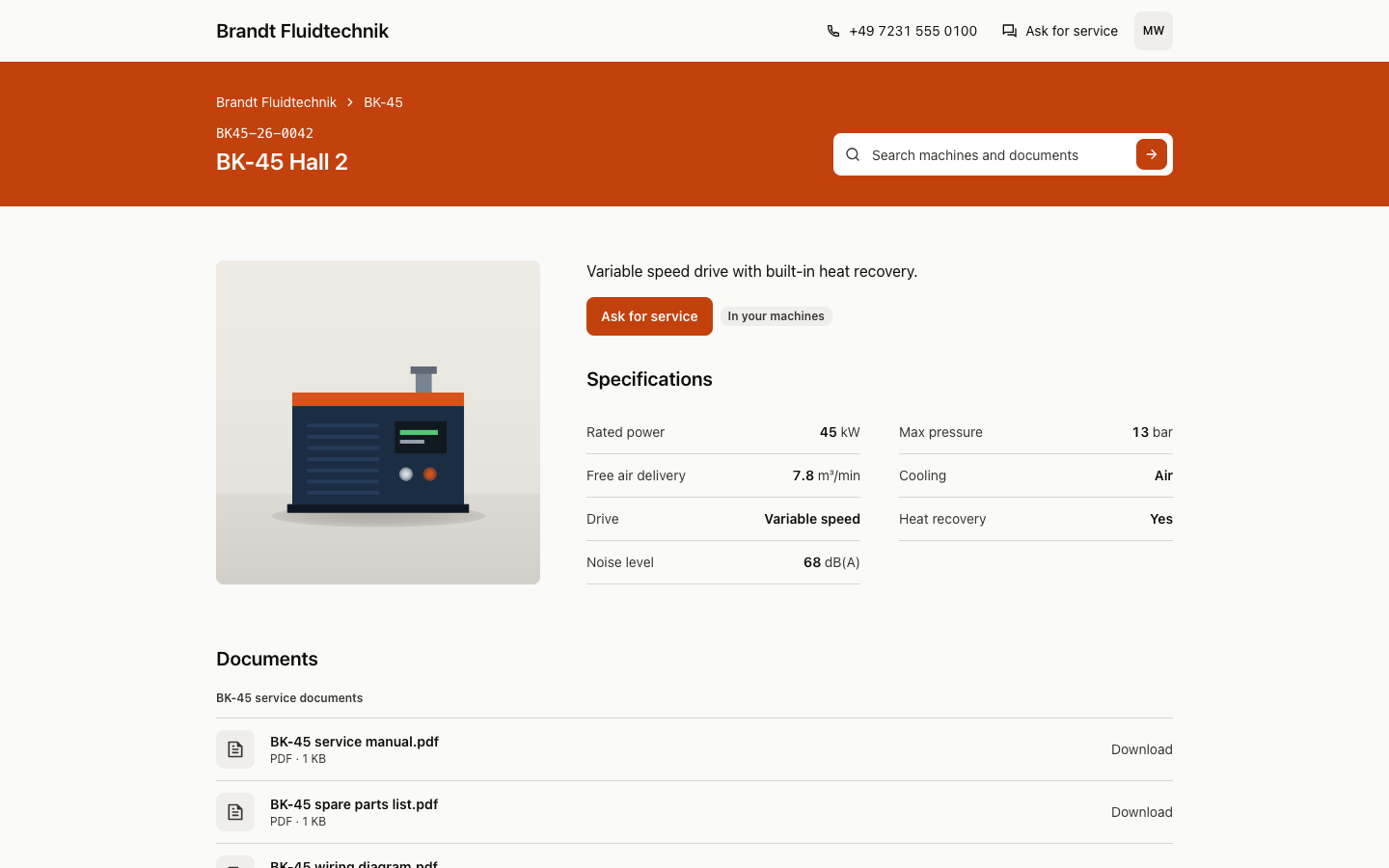
- Scanning a machine's QR code opens the machine's page: its name and code, the type's specifications and documents, and Ask for service.
- Ask for service sends the name, email, and message to your default inbox as a held conversation. Without a default inbox, the portal offers phone and email.
Customers sign in
- Customers sign in with a six-digit code from an email. There are no portal passwords.
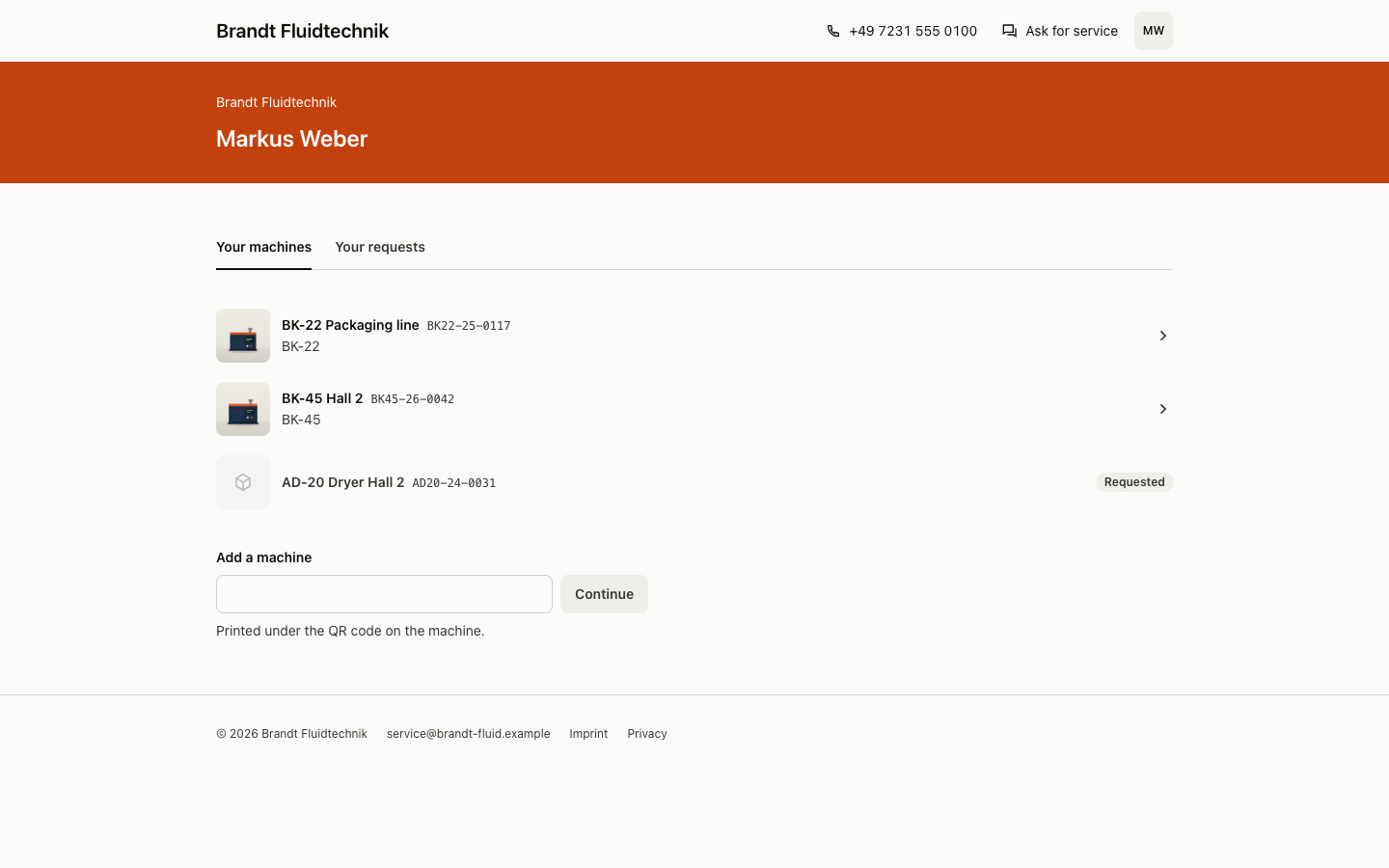
- Signed in, a customer sees Your machines and Your requests. A machine appears there only after a member gives access to it, or to the space it is in.
- On a machine's page, a signed-in customer selects Request access. Owners and admins approve or decline it in Contacts.
- Settings → Customer portal → Access sets how open the portal is:
- Public: anyone browses the catalog, type pages, and folders shared with Everyone.
- Request access: strangers see only a sign-in page and wait for approval.
- Invite only: only contacts a member added can sign in.
What to expect
- A new portal starts on Request access. Choose Public if visitors should browse without signing in.
- Contacts are not members and use no seat. Signing in to the portal does not open the app.
- Members always get past the sign-in page and see the portal as a customer would.
How to explain it
- "Scan the code on your machine, or sign in to our portal, to get its manuals and ask us for service."
- Don't imply: customers see your work orders, logbook, or the machine's history. They see only what you share.